Skorby HomeAwtrix DisplayVideo OverlayWeb BoardHubContact
Get the app →
Hardware · LED scoreboard · 20-minute setup

Put the score
on a real screen. - 20 minutes of setup, every match thereafter.

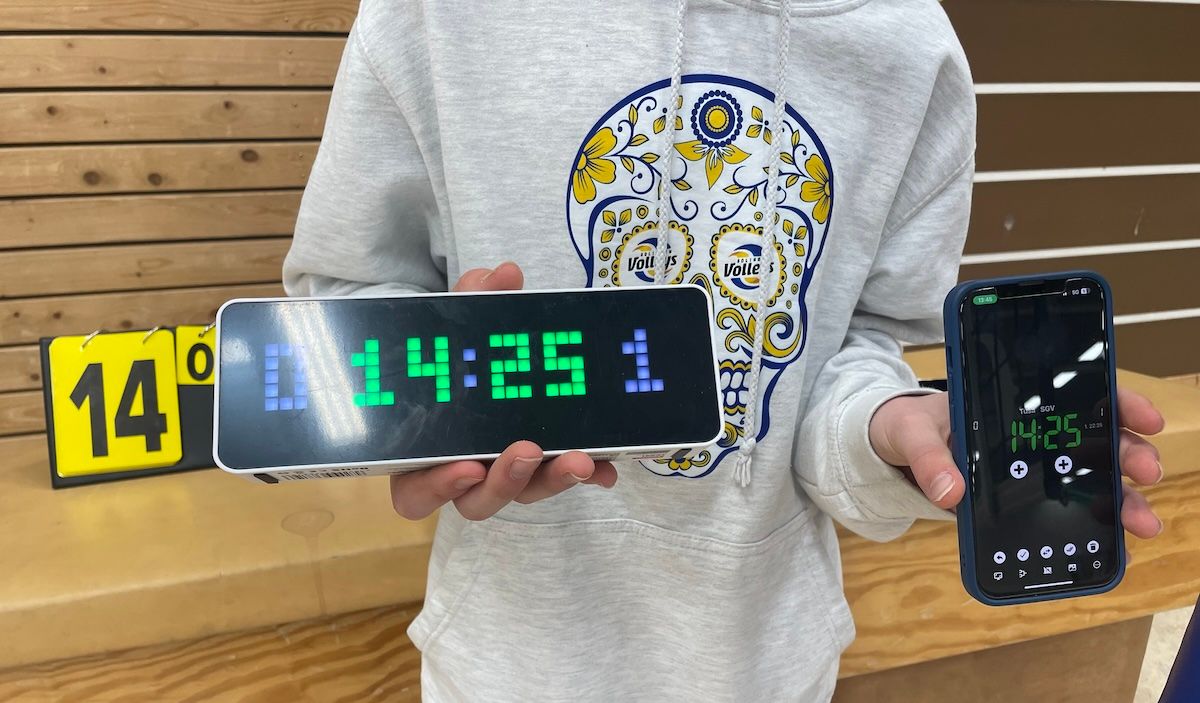
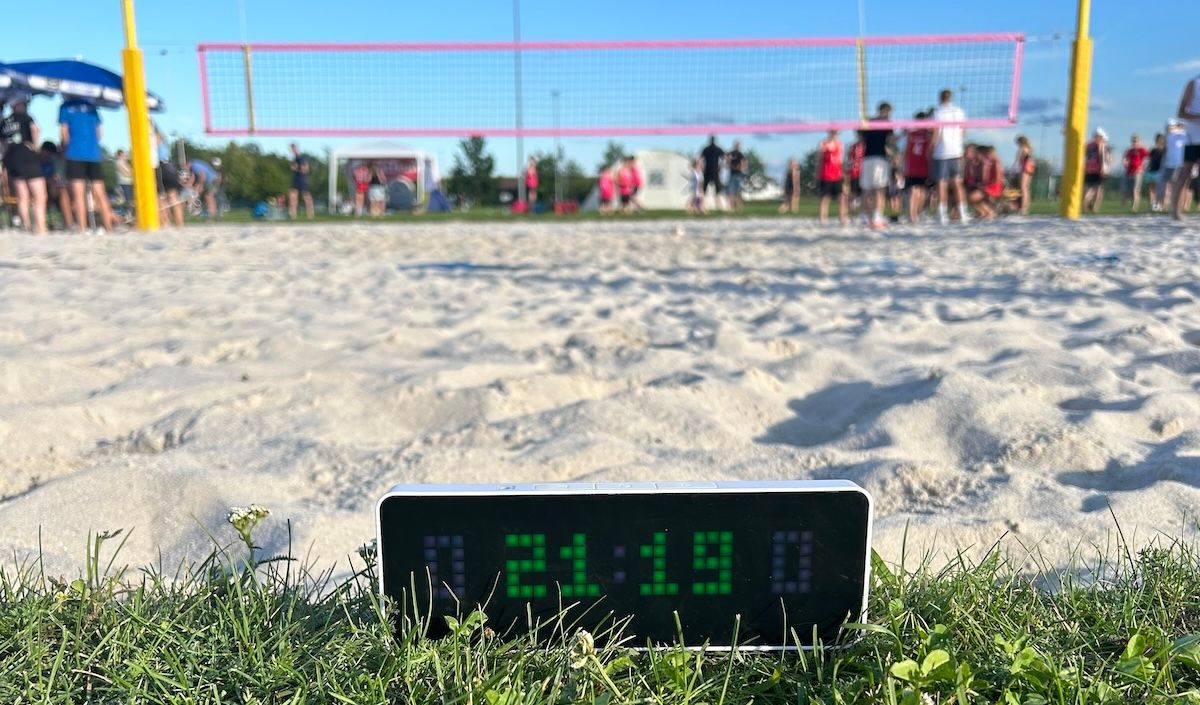
Skorby pairs with the battery-powered ULANZI TC001 LED display running open-source AWTRIX firmware. A bright 32×8 score that anyone in the park can read — no laptop, no router, just your phone's hotspot. Set it up once, take it to every match.
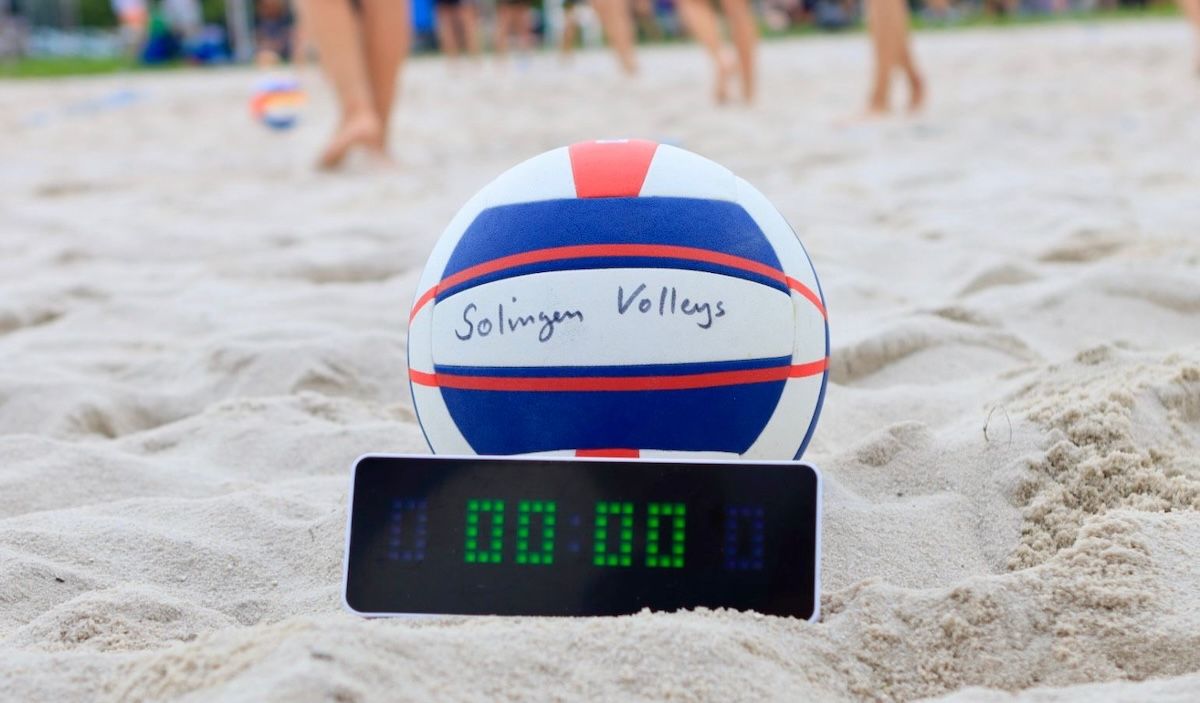
LED score on a beach volleyball post
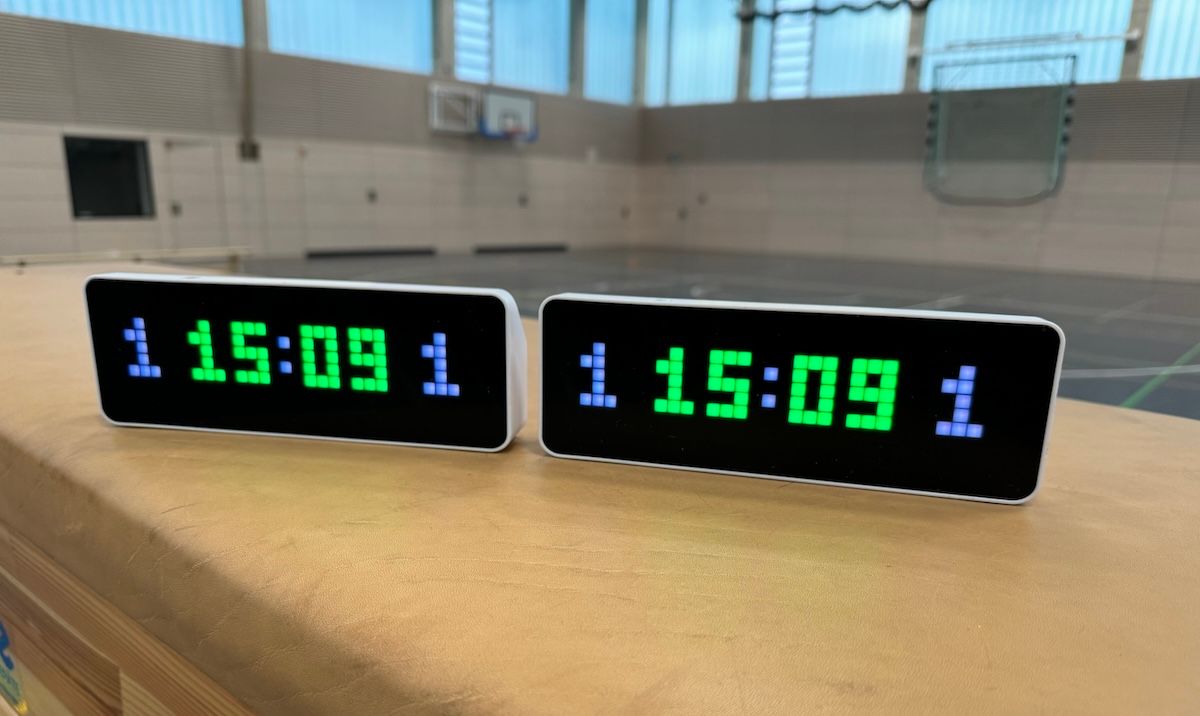
Two AWTRIX displays in use
LED display courtside
LED display on the beach
ULANZI TC001 LED display showing a live Skorby score
Preview · the LED in action
The plan
Step 02 · Flash

Replace the stock firmware

Out of the box the TC001 runs ULANZI's stock smart-watch software. We swap it for the open-source AWTRIX firmware — originally built for home-automation dashboards, but exactly the right shape for a remotely-controlled scoreboard. The web flasher does the work; you just plug in and click.

  1. Plug the switched-off display into your computer over USB.
  2. Open the AWTRIX web flasher in Chrome or Edge.
  3. Switch the display on so the browser can see it.
  4. Start the flash from the web flasher and wait for it to finish.
Open the AWTRIX web flasher →
Step 03 · Wi-Fi

Pair it to your phone's hotspot

After flashing, the display boots into AP mode and spins up its own Wi-Fi network. You connect to that network once to tell it which Wi-Fi to actually join. On the court that's almost always your phone's mobile hotspot — that way the display follows you to every venue, no venue-Wi-Fi required.

  1. Open the personal hotspot settings on your phone.
  2. Turn the display on and confirm it shows AP Mode.
  3. Connect your computer (not your phone) to the Wi-Fi called awtrix_XXXX. Password: 12345678.
  4. The AWTRIX config page should open. If not, browse to http://192.168.4.1.
  5. Scan for your mobile hotspot Wi-Fi and enter its password.
  6. The display restarts and joins your phone's hotspot.
  7. Heads up: this is the most fragile step. A rescan or two may be needed — but it's a one-time setup.
Open 192.168.4.1 →
Step 04 · Pair

Hand the score to Skorby

Final step. The display is online; now we tell Skorby where to send the score. One tap in the app's Share menu, and every point you score on your phone lands on the LED in real time.

  1. Open the personal hotspot on your phone.
  2. Switch the display on and let it reconnect to your hotspot.
  3. In the Skorby app, open the Share menu.
  4. Tap Connect — when it works, 'Skorby' appears on the display.
  5. Score a point. The LED updates in real time. Done.

Take the score
to the post.

One ULANZI TC001, one open-source firmware, one Skorby app. Twenty minutes of setup buys you a real LED scoreboard you can take to every match — on the beach, on court, on the road.

Get the ULANZI TC001 → Download Skorby · iOS Android